
Destination-driven rows
Route each row to the required Ascension node, output channel and user layer. Assets dropped into that row inherit the destination.
ASCENSION CUEBOARD
Not every production runs to a clock. CueBoard is Ascension's operator-driven playback environment for the moments that happen when the show caller says GO. Build complete show states as cue columns, route rows to the outputs and layers that need them, and execute coordinated media, transitions, layer looks and external control without forcing a live show into a timeline.
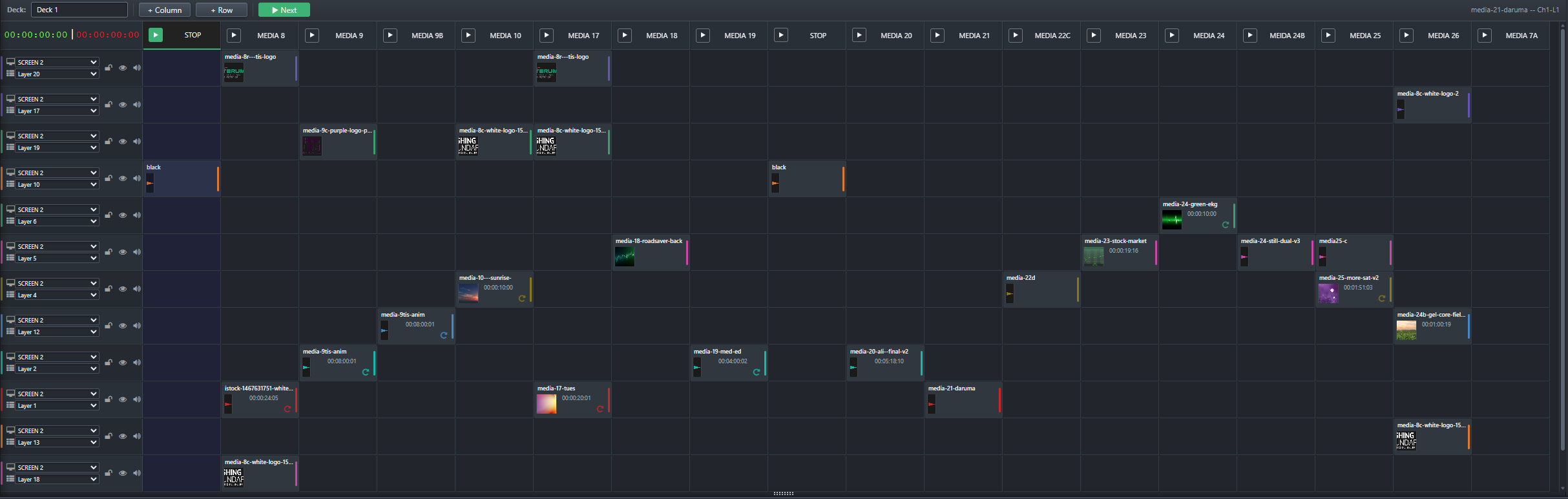
Operator-driven show control
Rows describe destinations. Columns describe cue moments. When a column fires, Ascension coordinates the programmed change across the rows that participate in that cue.
Route each row to the required Ascension node, output channel and user layer. Assets dropped into that row inherit the destination.
Combine multiple assets and destinations into one operator action instead of firing unrelated playback commands one at a time.
Separate acts, rooms, operating responsibilities or alternate sequences into focused decks inside the same Event.
Follow the active column, media progress, loop state and elapsed or remaining timing from the state reported by the running server.
Keep backgrounds, ambience, live sources or music active across multiple cue positions while other rows continue to advance.
Send supported network-control commands as part of the same cue that changes media and visual state.
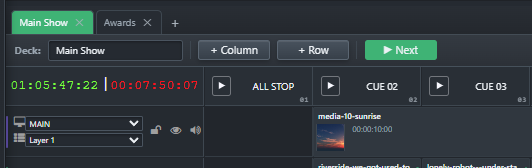
A grid that reads like the show
Drag media, Inputs, NDI sources, Templates and URLs from the Ascension Library into the grid. Move an asset horizontally to change its cue position or vertically to change its destination with the row. Replace sources directly in-place without rebuilding the surrounding show structure.
Cue-specific behavior
Playback choices belong to the CueBoard instance rather than the original media. Trim, route, transition and shape the cue for the job it has to do in this show.
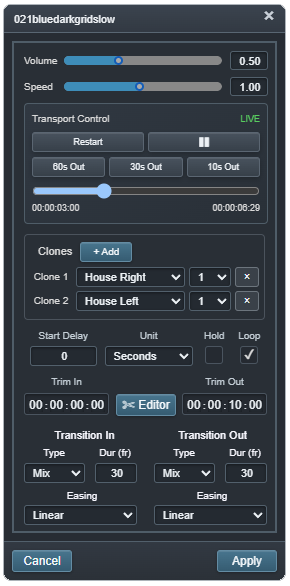
Set volume, playback rate, looping, clone routes, node/output destinations, cue delay and independent Transition In / Transition Out behavior.

Set trim-in and trim-out points against a visual preview while keeping the original source untouched.
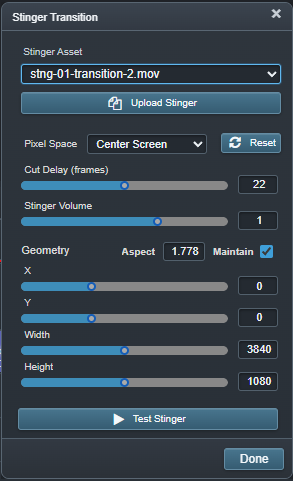
Assign Stinger media to an incoming cue, choose its cut point, destination, level and geometry, then let Ascension take the new CueBoard state underneath the transition.
Desired Layer Configurations
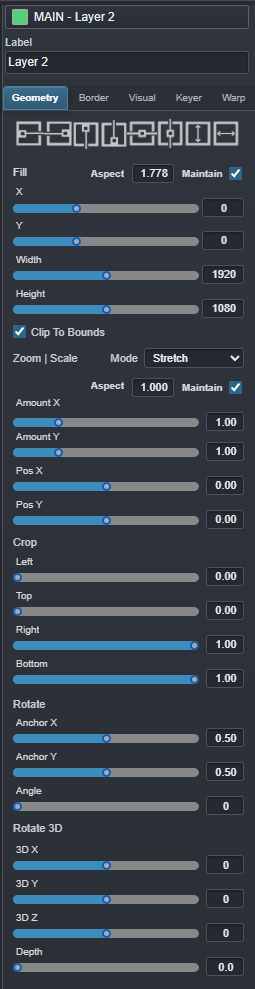
A CueBoard asset can carry the layer appearance it should recall when that cue is played. One item can be full-screen, the next a PIP, and another can recall crop, zoom, rotation, opacity, keying, border or treatment settings without changing the normal Layer Default.
The Desired Layer Configuration belongs to that CueBoard asset. Edit it with Ascension's normal Output Space and Layer Controls, save it back to the cue, and the programmed look returns whenever that item is taken.
External control inside the cue
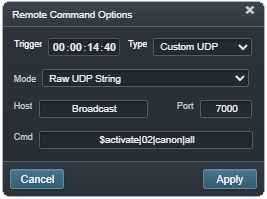
Attach external control to the same CueBoard column that advances the show. Ascension can send supported Companion, AV-Key, Custom UDP, OSC and Art-Net DMX actions, including a programmed millisecond delay when the device action should occur after the cue begins.
A column does not need media to be useful. It can exist purely as a device-control moment inside the operator's CueBoard sequence.
Stream Deck + Virtual Console
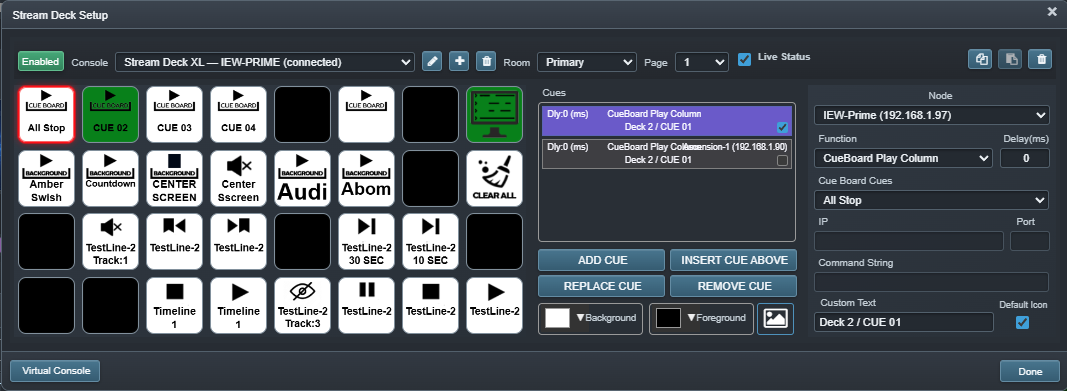
Ascension includes its own Stream Deck control system rather than treating the hardware as a collection of fixed hotkeys. Design consoles inside the show, build button actions from Ascension functions, and use the same control surface from connected Stream Deck hardware or the browser-based Virtual Console.
Control-surface editor
Each button can execute a single command or a stack of cues. Add actions, insert or reorder them, target local or remote nodes, apply millisecond delays, and select the cue that defines the button's icon, automatic text and live-status color.
Ascension Redundancy Control · ARC
Ascension Redundancy Control (ARC) brings remote Stream Deck control and the Ascension browser workspace together on a Windows, macOS or Linux operator workstation. Connect the deck by USB, launch ARC, and operate a single Ascension server or a configured Main / Backup pair.
For redundancy, run ARC and the attached decks on a separate third workstation, independent of both media servers. With protection armed, ARC confirms configured Main faults and checks Backup readiness before transferring control. The browser view and Stream Deck commands follow the selected server, keeping the operator connected through the takeover.
The handover can also coordinate the rest of the production. ARC can automatically send configured TCP or UDP command strings to compatible switchers, routers or automation systems when transferring to Backup or returning to Main.
Using a Stream Deck directly on the Ascension server? Enable it through Settings > Stream Deck to use the installed local bridge. ARC is the recommended client for remote operation and independent redundancy control.
Explore ARC protection and external actions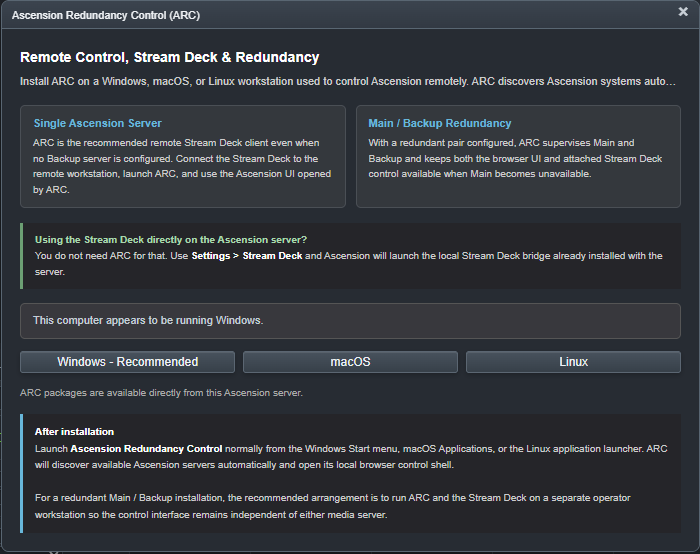
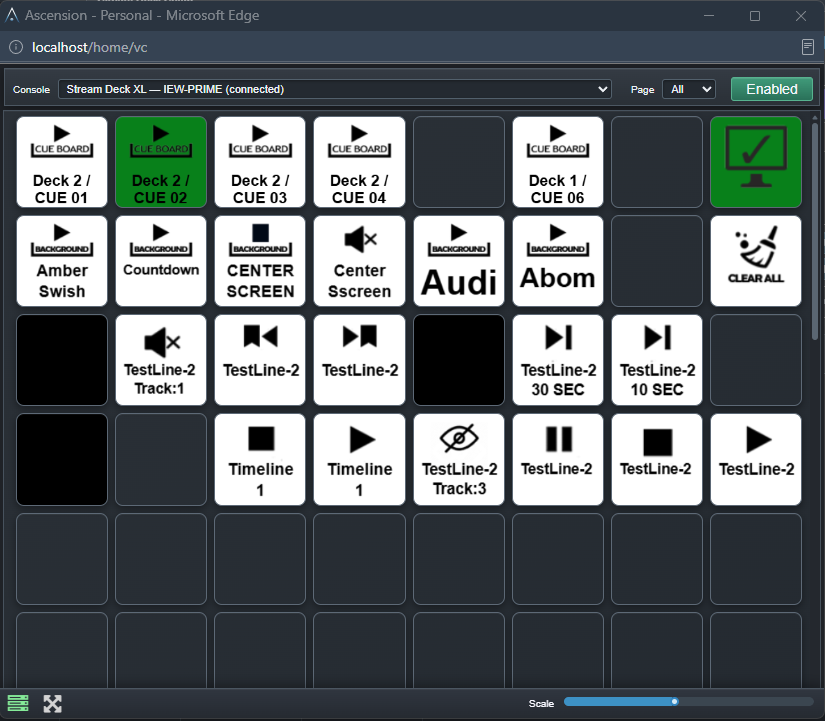
Open the Virtual Console in a browser and operate the configured surface with the same pages, button identities and live state. Select the console, choose a page, scale the surface to the display and keep show control separate from the main programming workspace.

The same surface adapts to a mobile display for roaming operation, backup control or a compact operator station—without creating a second set of commands.
Operator-driven or clock-driven
Use CueBoard when the next moment happens when the room is ready. Use Timeline when media and control must follow a programmed clock. Ascension Events can use both.